People and AI Crew pass work back and forth in the same channel
Messenger is a work messenger built on team channels, one-on-one conversations and threads. AI Crew also joins channels as a member, takes requests and leaves results and points to check in the same conversation. Task, note, meeting and approval cards appear in the conversation, and selecting one takes you to its original screen.
Designed for: Teams that coordinate work across departments and suppliers in a messenger and don't want the work and files from conversations to get scattered
When you need it
Dozens of quotes, photo shoot drafts and inspection photos are posted to the launch prep channel every day. After just a few days, people ask again which file is final and who agreed to check what.
In the conversation, people say "I submitted the approval" or "Sharing the meeting minutes", but the actual documents are on other screens. While you look for links and check permissions, the conversation loses its flow.
You open a separate AI tool to ask, then copy the answer and paste it back into the channel. Teammates can't tell what materials the answer came from or who checked it.
How it differs from a general messenger
It takes requests inside the channel, not in a separate AI window. Results and points to check stay in the conversation, so the whole team sees the same thing.
Share tasks, notes, meetings, approvals and contacts as cards. Selecting a card opens that item's original screen.
Your one-on-one conversation with AI Crew is the same record as the AI Crew command window. Reports on work you assigned from the Mail screen continue in Messenger.
Key features
Conversations, files, work cards and AI Crew come together on one screen.
Channels, one-on-one conversations and threads
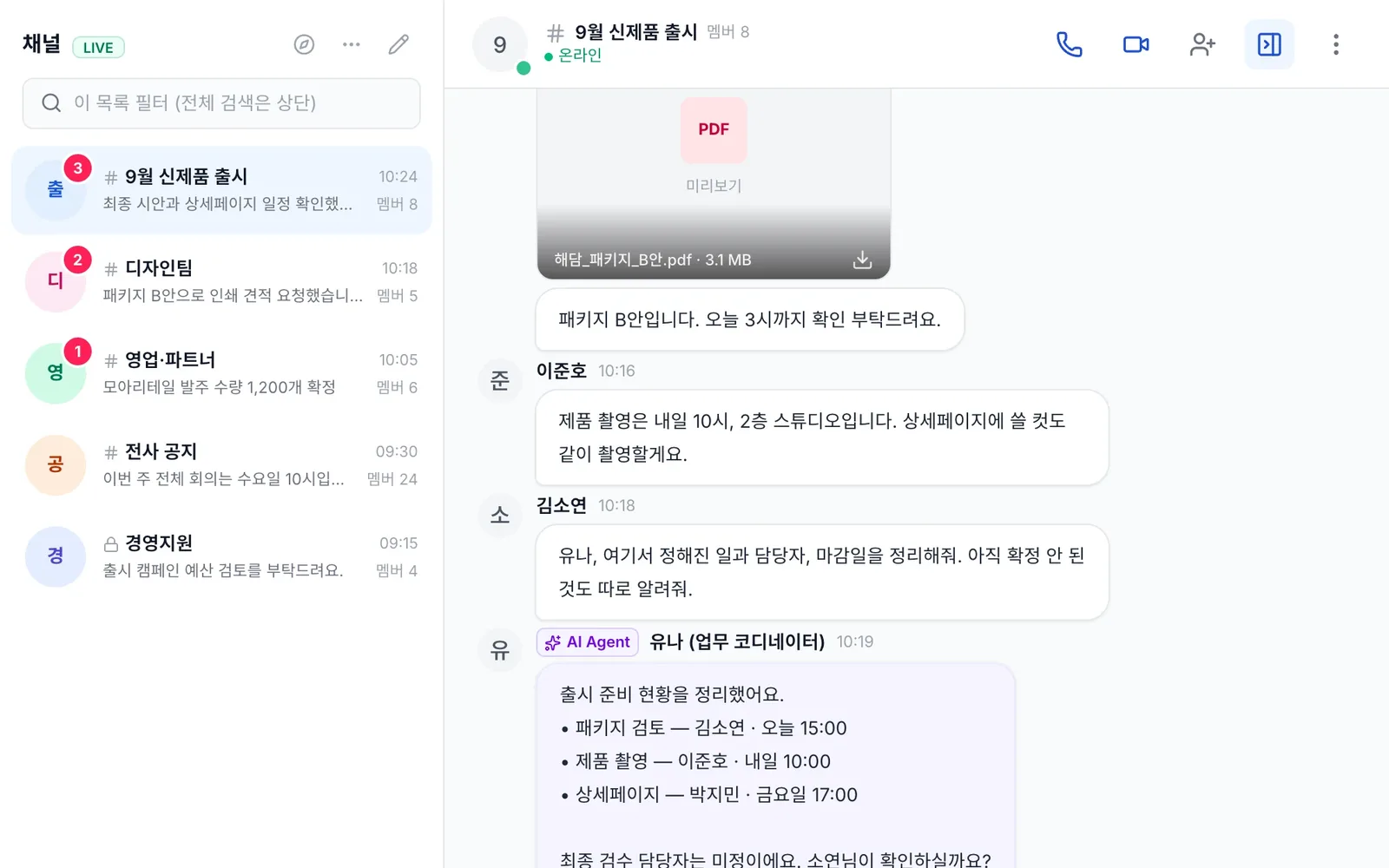
Move between work channels and one-on-one conversations on one screen. When a topic splits off, break it into a thread, and call in the person who needs to check with a mention. Online status and typing indicators show right away whether you can get an answer now.
- Channels, one-on-one conversations, threads and mentions
- Online status and typing indicators
- Members who belong to several companies can join each company's channels
Many files at once
Send up to 30 files in one message. Drag and drop or paste to upload right away, and copy message text to use elsewhere. It is handy when you share many files together, such as a batch of photo shoot images or inspection photos.
- 30 attachments per message
- Upload by drag and drop or paste
- Copy messages
Search, collections and pending approvals
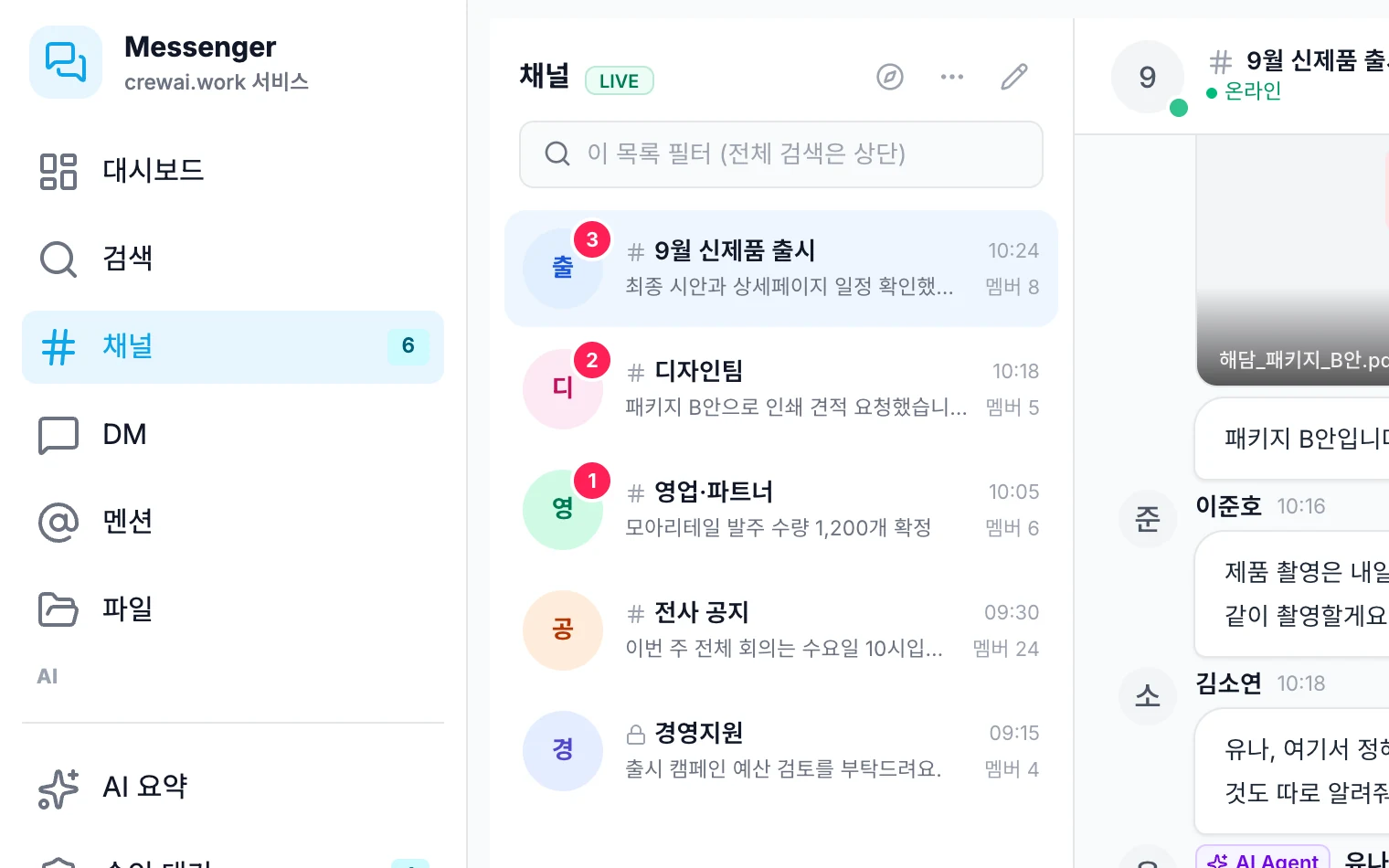
Open search, files, mentions of you and pending approvals right from the left menu. Find only what you need without scrolling back through old conversations. You also won't miss approvals you need to check inside Messenger.
- Message search
- Files and mentions in one place
- Pending approvals list
Work cards and the shared share window
Post tasks, notes, meetings, approvals and contacts to the conversation as cards. Every service uses the same share window, so a card looks the same wherever it was shared from. Selecting a card takes you to its original screen.
- Task, note, meeting, approval and contact cards
- One share window across services
- Go from a card to its original screen
AI Crew working as a channel member
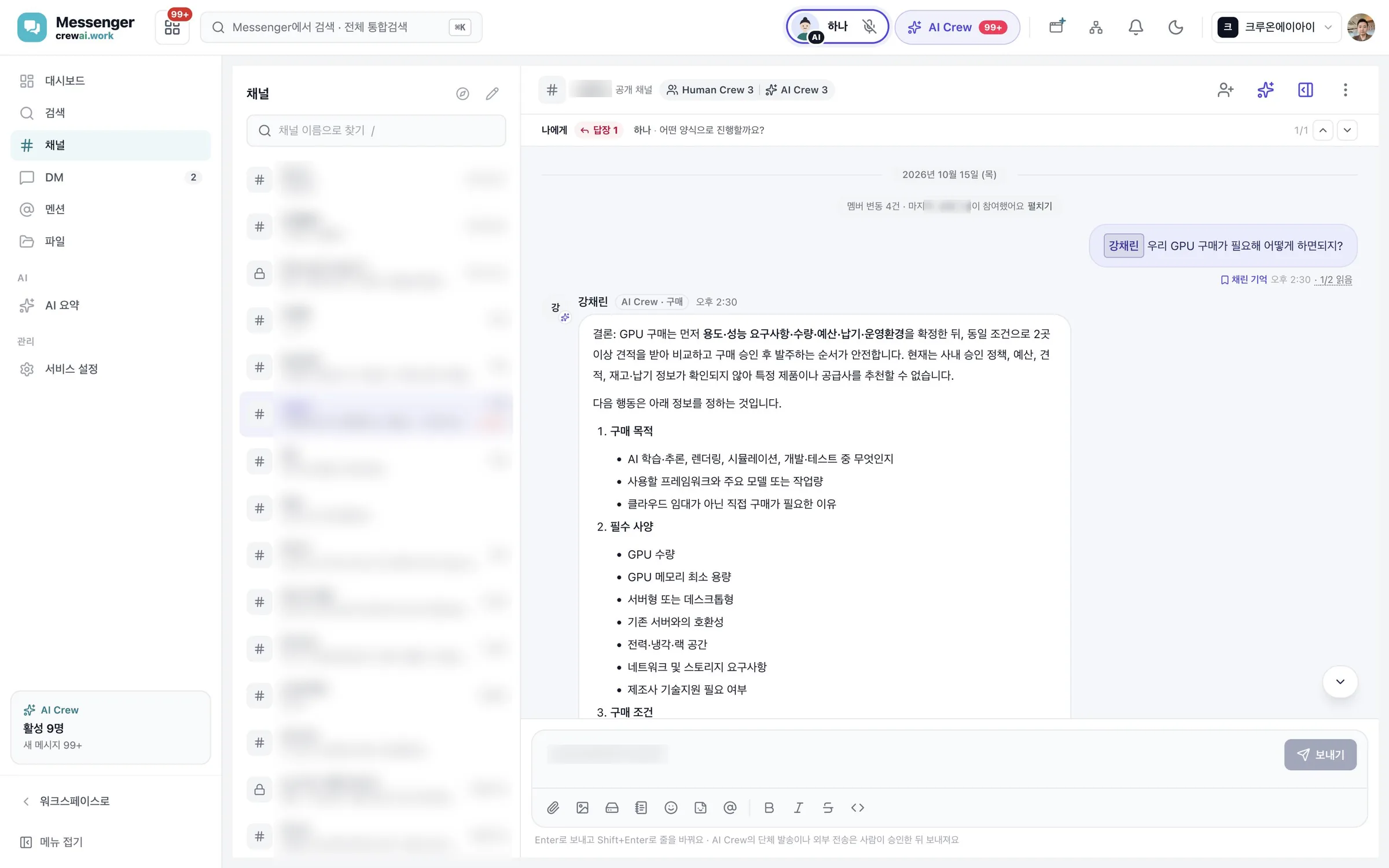
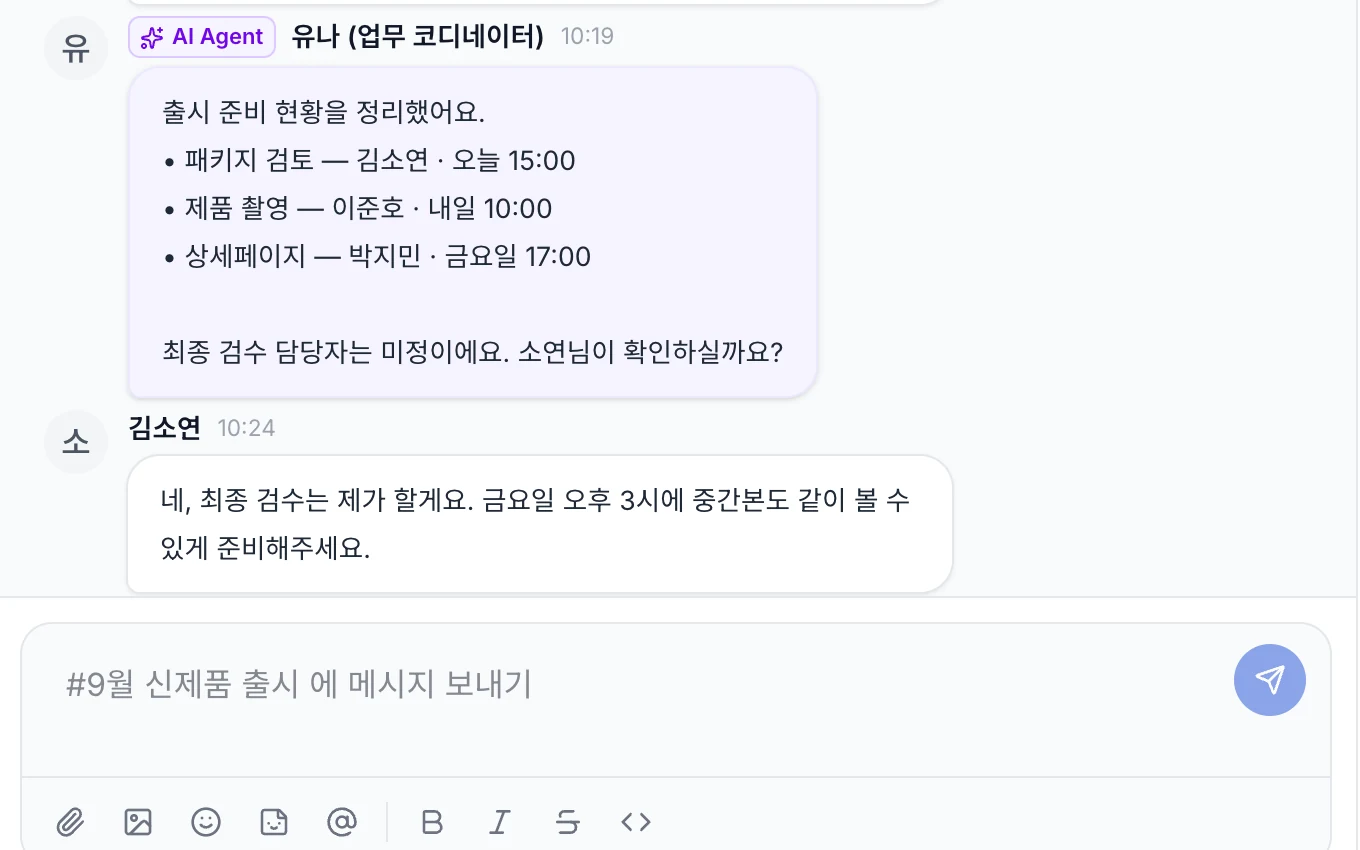
Add AI Crew to a channel and it takes requests like a teammate. After handling the work, it leaves the conclusion and points for people to check in the same conversation. The whole team sees who asked for what and what answer came back.
- Make requests with a mention in the channel
- Conclusion and points to check recorded in the conversation
- Works only within the permissions of the person who assigned the work
One-on-one conversations with AI Crew
Your one-on-one conversation with AI Crew is the same record as the AI Crew command window. Whichever service you assigned the work from, you can keep asking and get reports in Messenger. New reports show up as real-time notifications and badges.
- Same conversation record as the AI Crew command window
- Continues with the context of earlier conversations
- Real-time notifications and badges
What AI Crew does and what people decide
- Handles requests from the channel and leaves results in the conversation
- Finds and summarizes posted files and past conversations
- Points out separately what people need to check
- Posts a confirmation card for work that needs a person's decision
- Decide which AI Crew goes in which channel
- Decide whether to use AI Crew's results and what to fix
- Check external sending and external sharing
- Approvers approve or reject approvals themselves
Working with AI Crew: an example
Example: the fictional company Ondam Living Co. is getting ready to launch its new fall product, the "Ondam mug set".
In the "Ondam mug launch" channel, the purchasing team lead mentions the purchasing AI Crew and asks it to compare the three OEM factory quotes posted in the channel.
AI Crew compares the unit price, minimum order quantity and delivery date in the quote files, lists the items to ask the factory about again, and leaves it all in the same conversation.
The purchasing manager answers the items to check in the thread, gathers the team's views and picks one factory. The decision process stays in the conversation as it happened.
The purchasing manager submits a draft request in Approval and shares the approval card in the channel. The purchasing team lead selects the card to open the approval screen and approves it personally.
Connected work in other services
Your one-on-one conversation with AI Crew and the AI Crew command window share the same record.
Share approval cards in conversations and see pending approvals together in Messenger.
Task cards appear in the conversation, and selecting one opens the Tasks screen.
Share meetings in Messenger.
Send notes to a channel from the share window for people, links and Messenger.
Send Drive files to Messenger from the same share window.
Admin and security
- Sign in once and use every service with the same organization and permissions. Admins decide which services each role can use, and add exceptions only for the people who need them.
- AI Crew sees files and works only within the permissions of the person who assigned the work.
- External sending, external sharing, deleting and approvals either go through a human check or can be done only by people. Admins can make these check rules stricter, but they cannot loosen them.
- What AI Crew does is kept as activity records.
- Messenger chat rooms are one of the sources of AI Crew memory. Memory is kept separate for each company. You can view it and take it out in the Memory tab, and you can restore memory you took out within 30 days.
Frequently asked questions
Does AI Crew see every conversation in a channel?
AI Crew sees conversations and materials only within the permissions of the person who assigned the work. You can check and remove what it remembered from Messenger conversations in the memory tab, and restore removed memories within 30 days.
Does it cost extra to add AI Crew to a channel?
AI Crew pricing is shared with each company after a quote and consultation. In an adoption consultation (contact@crewon.ai), you decide together on the scope of work you want to use it for.
Can I approve approvals in Messenger?
Approval cards and the pending approvals list appear in Messenger, and selecting one opens the approval screen. Approvers approve in the approval screen themselves, and AI Crew cannot approve.
Is there a limit on how many files I can send at once?
You can send up to 30 files in one message. Drag and drop or paste files to upload them right away.
Can people who belong to several companies join channels?
Yes. Members who belong to several companies join each company's channels within that company, and each company's data is kept separate.
Does AI Crew send messages outside the company without a check?
No. Sending and sharing outside the company happen only after a person checks.
Related pages
Start with AI Crew in the November closed beta.